
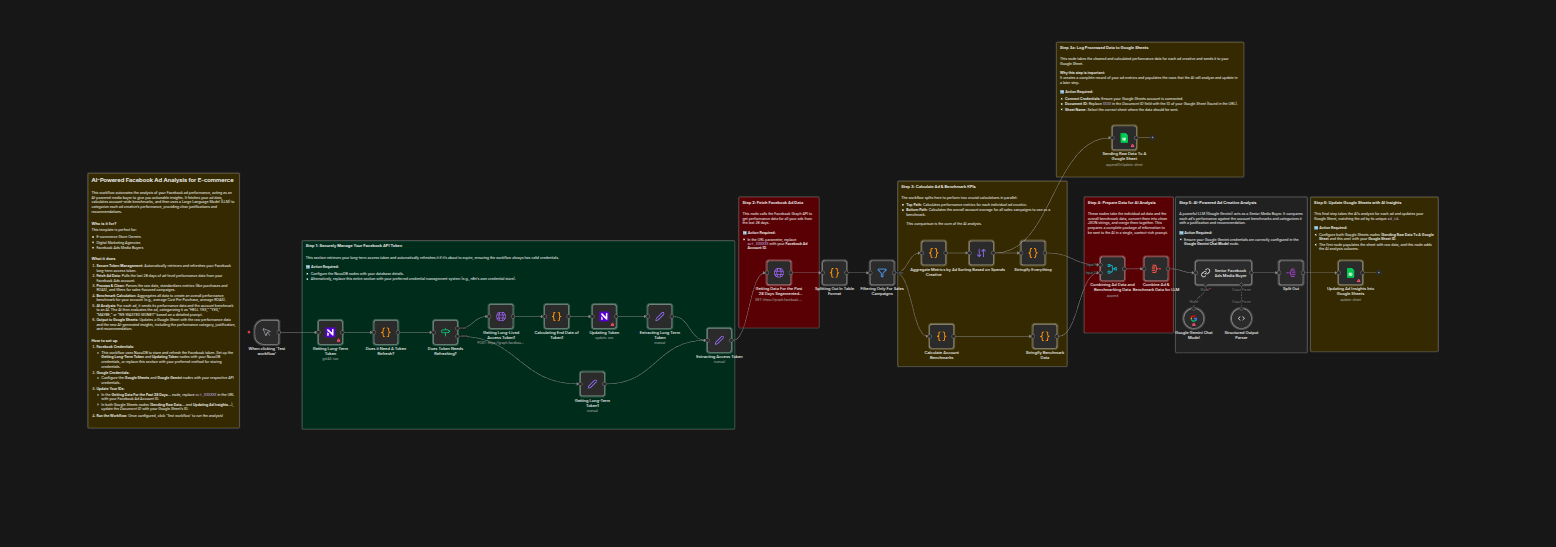
Stop manually digging through Meta Ads data and spending hours trying to connect the dots.
About This 4-Part Automation Series
As a media buyer, I built this system to automate the heavy lifting of analyzing ad data and brainstorming new creative ideas. This template is the first foundational part of that larger system.
-
✅ Part 1 (This Template): Pulling Ad Data & Getting Quick Insights Automatically pulls data into a Google Sheet and uses an LLM to categorize ad performance.
-
✅ Part 2: Finding the Source Files for the Best Ads Fetches the image or video files for top-performing ads.
-
✅ Part 3: Using AI to Understand Why an Ad Works Sends your best ads to Google Gemini for structured notes on hooks, transcripts, and visuals.
-
✅ Part 4: Getting the AI to Suggest New Creative Ideas Uses all the insights to generate fresh ad concepts, scripts, and creative briefs.
What This Template (Part 1) Does
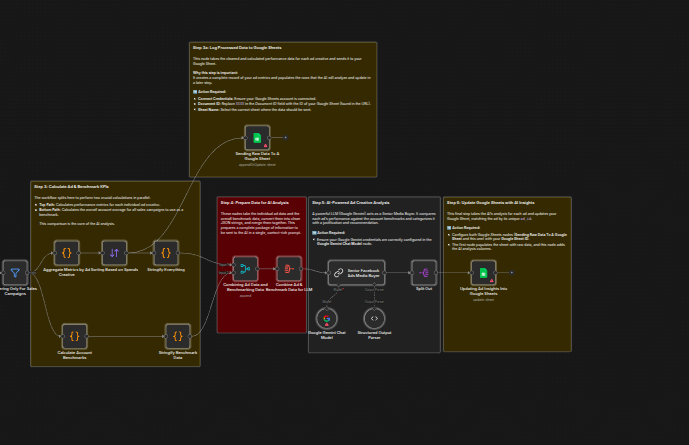
Secure Token Management
Automatically retrieves and refreshes your Facebook long-term access token.
Fetch Ad Data
Pulls the last 28 days of ad-level performance data from your Facebook Ads account.
Process & Clean
Parses raw data, standardizes key e-commerce metrics (like ROAS), and filters for sales-focused campaigns.
Benchmark Calculation
Aggregates all data to create an overall performance benchmark (e.g., average Cost Per Purchase).
AI Analysis
A “Senior Media Buyer” AI persona evaluates each ad against the benchmark and categorizes it as “HELL YES,” “YES,” or “MAYBE,” with justifications.
Output to Google Sheets
Updates your Google Sheet with both raw performance data and AI-generated insights.
Who Is It For?
- E-commerce store owners
- Digital marketing agencies
- Facebook Ads media buyers
How to Set It Up
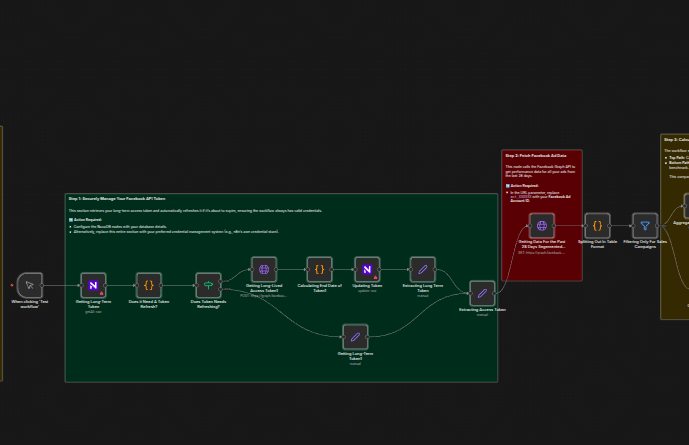
Credentials
- Connect your Google Gemini and Google Sheets accounts in the respective nodes.
- The template uses NocoDB for token management. Configure the “Getting Long-Term Token” and “Updating Token” nodes — or replace them with your preferred credential storage method.
Update Your IDs
- In the “Getting Data For the Past 28 Days…” HTTP Request node, replace
act_XXXXXXin the URL with your Facebook Ad Account ID. - In both Google Sheets nodes (“Sending Raw Data…” and “Updating Ad Insights…”), update the Document ID with your target Google Sheet’s ID.
Run the Workflow
Click “Test workflow” to run your first AI-powered analysis!
Tools Used
- n8n
- Facebook for Developers
- Google AI Studio (Gemini)
- NocoDB (or any credential database of your choice)
Read more
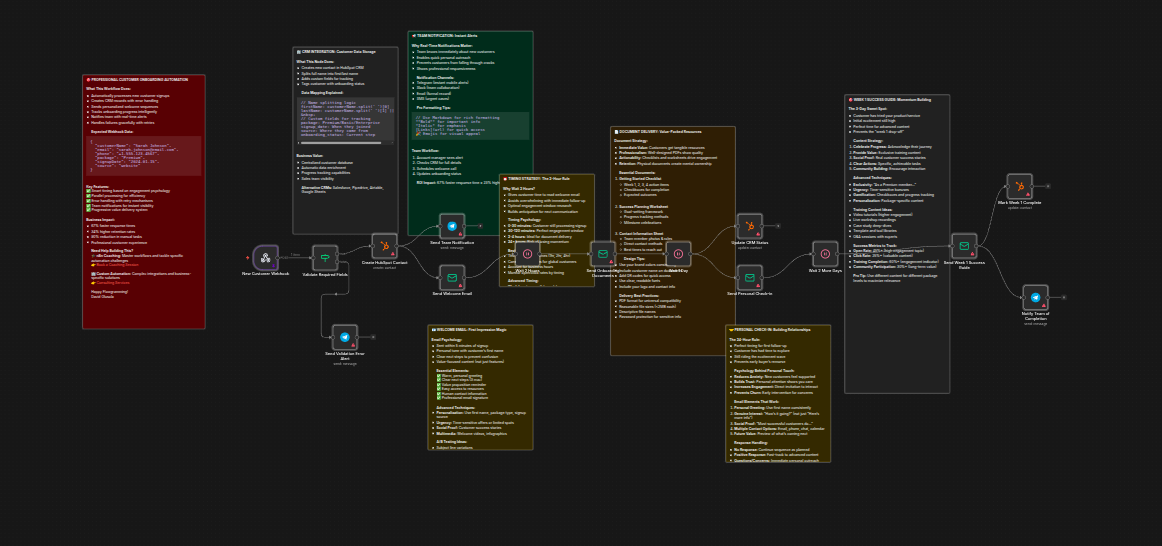
Customer onboarding automation with HubSpot, email sequences and team alerts
Learn how to automate your customer onboarding process using n8n, HubSpot, and email sequences to improve engagement and retention.
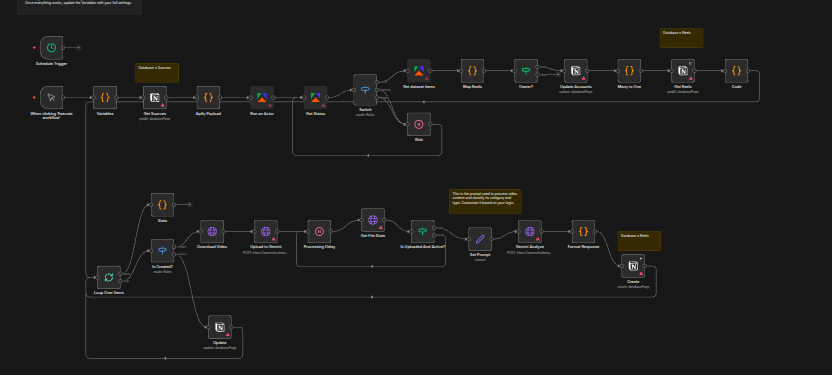
Top-performing Instagram Reels & save insights to Notion with Gemini & Apify
Learn how to discover trending Instagram Reels from competitors and organize insights into a structured Notion database using Gemini AI and Apify.
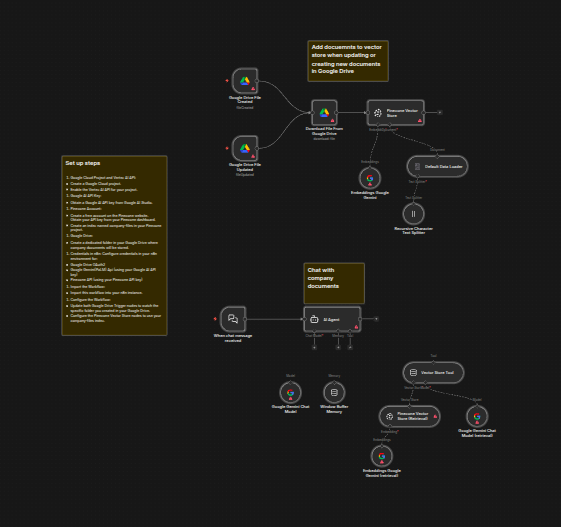
RAG chatbot for company documents using Google Drive and Gemini
Implement a Retrieval Augmented Generation (RAG) chatbot that answers employee questions based on company documents stored in Google Drive using Gemini AI.